Lesson letter
Classquest duration: 45 minutes
Target audience: Ages from 8 to 12
Sanne and André need the class’s help to check the messages that grandparents send to them. Many older people receive messages and don’t always know what to do with them. The class is given the task of evaluating these messages using the five basic rules of online communication. They must decide whether to ignore/report or respond/accept the messages.
Through this activity, students learn what to look for when assessing messages. Is the sender real? Are they asking for sensitive information? In this way, they discover how to recognize fake and mean messages, and how to prevent someone from falling into an online trap.
Learning goals
The students learn...
- how to identify security risks when using digital systems and data
- weighing dilemmas involved in sharing personal data and information about oneself and others
- how to deal with inappropriate content, inappropriate behavior, and security risks in the digital world
- how to safely use digital systems, data, and information, and how to technically protect them appropriately
- how to talk with others about what they learn regarding security and privacy
Link to DigComp*
- D4 safety, wellbeing, and responsible use
*DigComp (the Digital Competence Framework for Citizens) is an EU framework that describes the digital skills people need to use technology confidently, safely, and responsibly. For primary school teachers, it provides a clear reference for helping children learn basic skills such as finding information online, creating simple digital content, staying safe on the internet, and behaving respectfully in digital environments. DigComp supports a shared European understanding of what “being digitally competent” means at different ages.
Necessities
- Interactive board
- Create an account here in advance. If you want to practice a quest beforehand, click ‘practice’ at the start. This takes about half an hour.
Glossary
- Cyber: a word that indicates something related to being online or on the computer.
- Phishing: In phishing, criminals try to lure you to a fake website through emails. There, they steal information or money. Phishing is basically "fishing" for people’s personal data. (also check out the “Phishing” quest)
- Virus: a program or piece of code created to damage a computer.
The lesson
Introduction - 10 min
Tell the students that you will be talking about online safety, and that they will learn how to evaluate messages using the five basic rules. Explain that adults, just like children, sometimes receive unwanted messages. Today, the students will take on the role of real Cyber Agents to help these adults with evaluating different messages.
Create a mind map together with the children: what do they think of when they hear unwanted messages? Discuss when something is considered unwanted. Encourage students to share examples, such as phishing messages, fake messages, or mean messages they may have received themselves.
Core - 30 min
Indicate that you are now going to start the game as a class and discuss the rules of the game and the distribution of the students over the different groups in advance. Start the quest on the interactive whiteboard.
During this Class Quest, the same questions are asked before and after the lesson. This way, you can see together whether the children know more after the lesson than they did before.
Below are the questions that are asked during the game in the form of a quiz:
Question 1:
What do you do if you receive a message saying you’ve won a prize and need to click on a link
- Share the link with friends so they can win too
- Do not open the link because it may contain a virus ✅
- Open the link because it could be something fun
Question 2:
You receive a mean comment in a chat during a game. What do you do?
- Reacting back meanly, making the other person feel bad. Then it will probably stop
- Ignore the comment, and if it keeps happening, report it to an adult or in-game ✅
- Shut down the game and never play online again
Question 3:
You are playing a game and someone asks you for personal information, such as your address. What do you do?
- Share the information, maybe that friend is just interested
- Make up another address and give that
- Don't share personal information because you don't know who it is ✅
Question 4:
Someone online asks for your password so they can download a new gadget for you. What do you do?
- You say no and tell an adult ✅
- You just change one letter in your password and give it to them
- You give it! Sounds awesome, right?
How do I make the lesson more interactive?
- In the quest, Sanne and André tell all kinds of things about the Internet. This is described in text. You can choose to have children read the text of a specific character (for example, child x reads the text of André and child y reads the text of Sanne).
- During the quest choices will have to be made. You may choose to use an active form of work in doing so. For example: If you think we should go right, you may stand. If you think we should go straight, you may stay in your seat. And if you think we should go left, you may sit on the floor.
- Do the class activities!
Closing - 10 min
Some deeper discussion questions to talk about after the Class Quest:
- What is the most important thing you learned today about online safety? Expected answer: I learned that I should never share my personal information carelessly, because people could misuse it.
- Suppose a family member (for example, your grandparent) receives a suspicious message. What would you advise them to do? Expected answer: I’d tell them not to open the message or click on any links until they’re sure it’s real, or I’d help them check it.
- How can you help an online friend who’s being bullied without making the situation worse? Expected answer: I’d advise them to block the bully, report it to an adult or the website, and support my friend.
- What are the risks of sharing personal information online, such as your address or phone number? Expected answer: Strangers could bother you or try to scam you.
- Is there something you’d like to learn or practice more about online safety? Expected answer: I’d like to learn how to better protect my accounts from hackers.
- Have you ever received a message or link that you weren’t sure was real? What did you do? Expected answer: I showed the message to my parents, and they told me to report and delete it.
- How can you tell if a website or message is trustworthy? What do you look for? Expected answer: I check if there’s a padlock icon in the address bar and whether the website ends with something familiar, like .nl or .com.
- Would you ever share your address or phone number online? Why or why not? Expected answer: No, because if a stranger knows that, they could do something bad, like call me or come to my house.
- Suppose a friend asks you to send a photo of someone else without that person knowing. What would you do? Expected answer: I’d ask the person in the photo for permission first before sending anything.
- What would you do if someone online said something mean or unpleasant to you or a friend? Expected answer: I’d support my friend and think together about what we can do — or ignore it.
- Have you ever seen a video or image that made you feel uncomfortable? What did you do? Expected answer: Yes, I accidentally came across a scary video. I called my parents and closed the screen.
Follow-up assignment
If you’d like to review and/or deepen Core Objective, print the follow-up assignment “WE’LL TAKE IT WITH US!” Have the students complete these assignments at home and check a few days later whether they’ve done them and what they thought about them. The answers can also be found in the appendix.
Tips
- To add a dynamic touch, consider having students take turns reading the text, making the experience even more engaging.
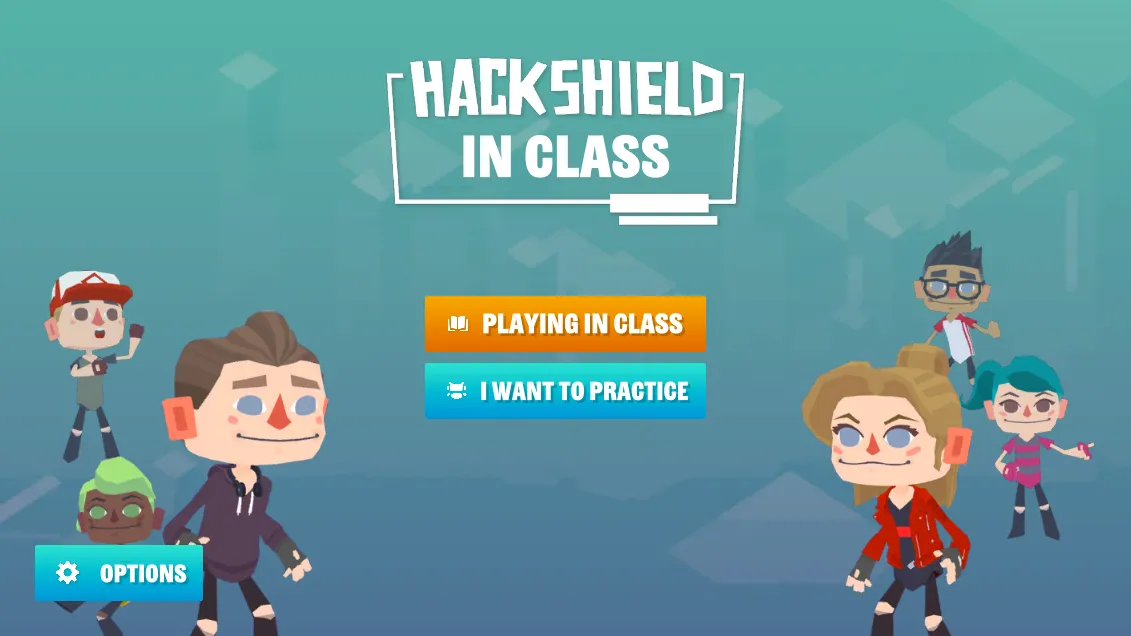
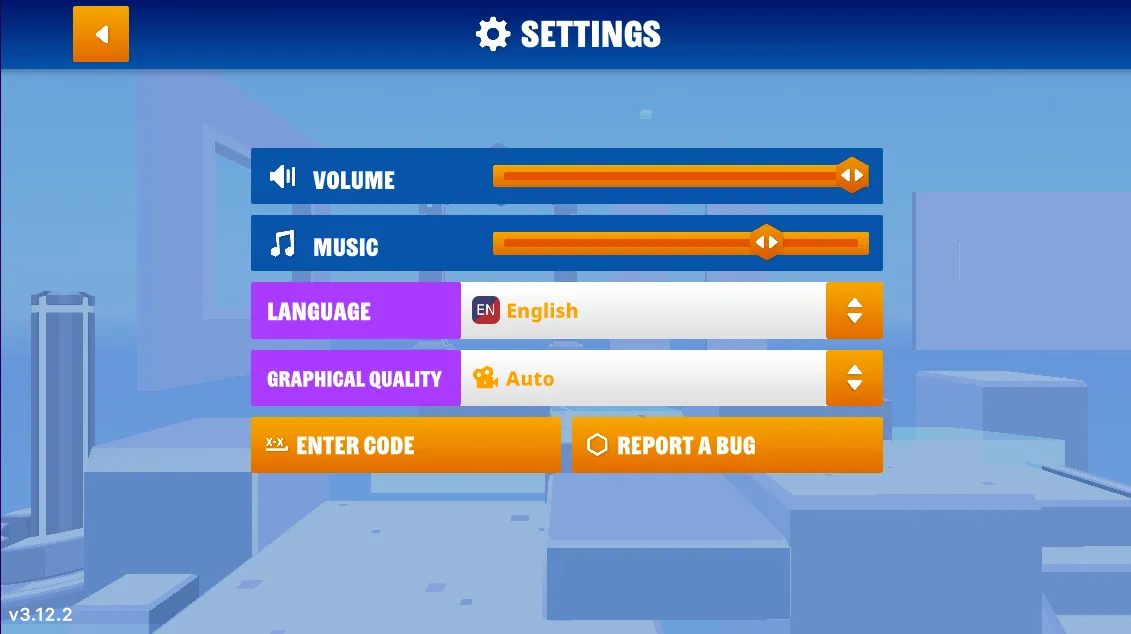
- If you prefer a silent quest, you have the option to turn off the sound. Simply navigate to the game's options menu, and you'll find the accompanying images on the right.
- Now, let's dive into the heart of our quest! Navigate to the game’s options menu where you can turn off the music.
Appendix
We"ll take it with us!
"Help an older person stay safe Online!"
Assignment 1: Talk with your grandpa, grandma, an elderly neighbor, or another adult about online safety. Ask them the following questions and help them learn how to handle digital messages and personal data more safely. Write down the answers they gave or the tips you shared in the boxes below the questions.
- Have you ever received a suspicious message? What did you do with it?
- Do you know how to check if a message or website is trustworthy?
- What would you do if someone asked you for personal information online?
- Do you have any questions about safe internet use? I can help you!

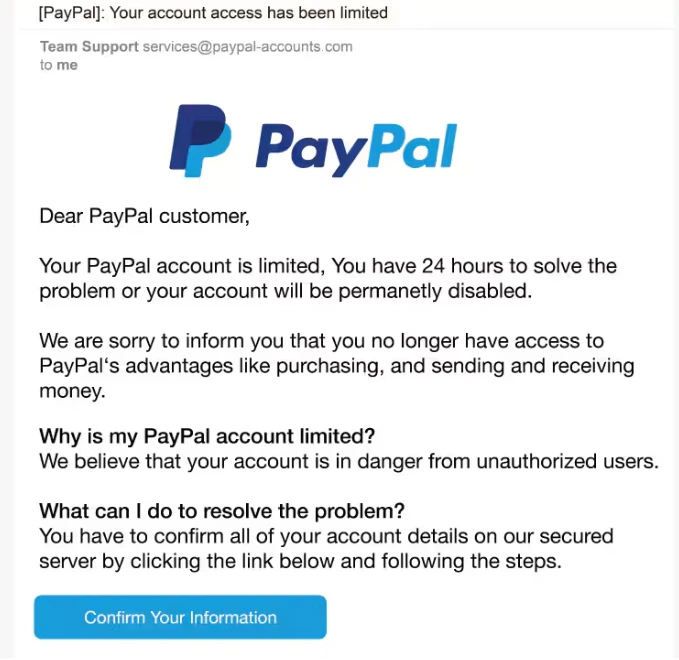
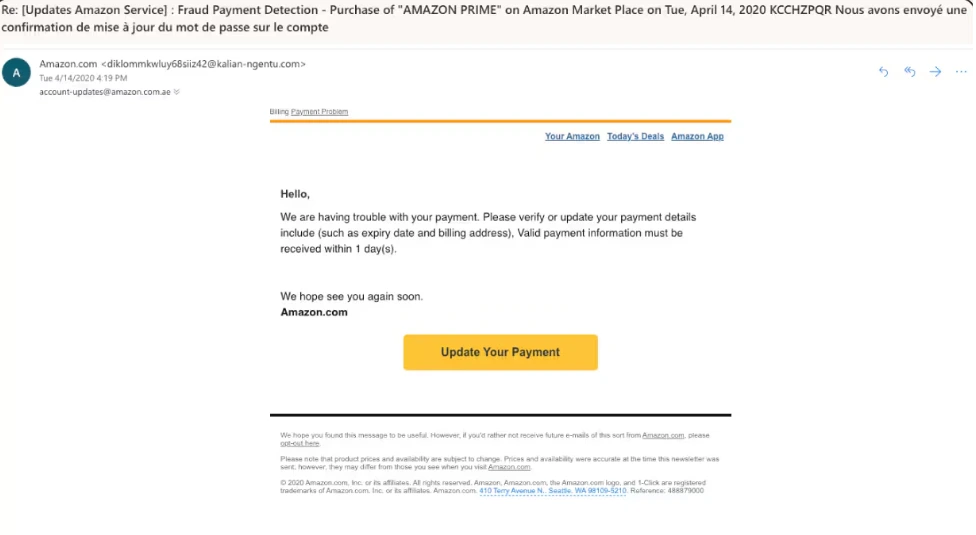
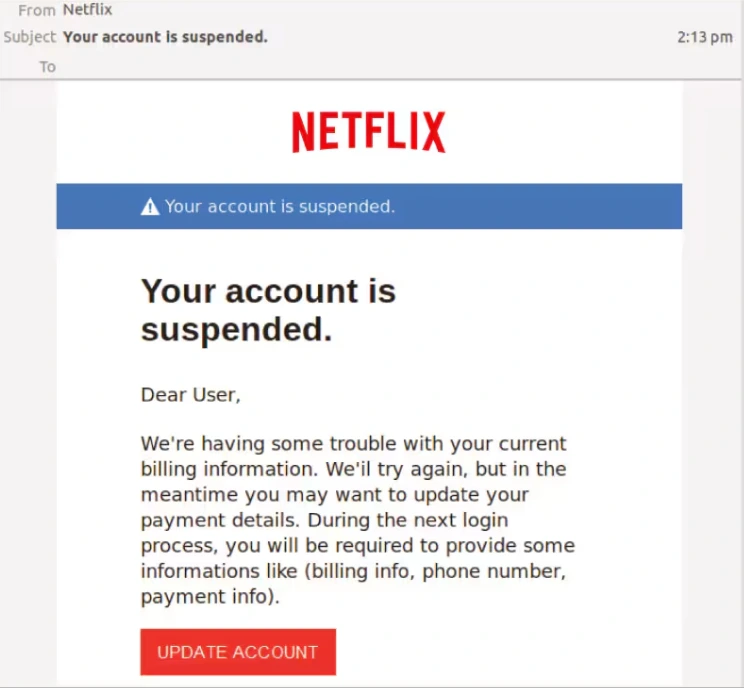
Assignment 2: Show the older person a suspicious message or an unfamiliar website, and discuss together how you can tell whether it’s real or fake.
Conclusion: Write or tell in a few sentences what you learned from the conversation. Were you able to help someone? What did you find most surprising?

We"ll take it with us! (Answers)
Paypal emaill: Fake. The user’s name hasn’t been specified and it’s a generic greeting. The first sentence provokes a sense of urgency, hoping the user acts without thinking. There are also grammar and spelling errors in the email if you look closely.
Amazon email: Fake. This Amazon phishing email comes from a suspicious email address, doesn’t include the customer’s name, and pressures the customer to update their payment information quickly.
Netflix email: Fake. There are spelling and grammar mistakes throughout the email. The customer's name is missing from the greeting and the “To:” field is completely blank, meaning the email was likely part of a larger phishing campaign sent to multiple email addresses.
https://us.norton.com/blog/online-scams/phishing-email-examples